mirror of
https://github.com/danbulant/Cosmos
synced 2026-06-10 18:21:20 +00:00

193 lines
6.5 KiB
Markdown
193 lines
6.5 KiB
Markdown
# File System
|
|
|
|
In this article we will discuss about using Cosmos VFS (virtual file system).
|
|
Cosmos VFS and the VFS manager classes lets you manage your file system.
|
|
|
|
First, we should create and initialize an instance of the VFS, this will initialize the partition and files-system lists, as well as register the new VFS.
|
|
This is essential for using the VFS.
|
|
|
|
We start with creating global CosmosVFS, this line should appear outside of any function, and before the BeforeRun() function.
|
|
|
|
```C#
|
|
CosmosVFS fs = new Sys.FileSystem.CosmosVFS();
|
|
```
|
|
|
|
Next, we register our VFS at the VFS manager, this will initiate the VFS and make it usable, add this to your kernel's BeforeRun():
|
|
|
|
```C#
|
|
Sys.FileSystem.VFS.VFSManager.RegisterVFS(fs);
|
|
```
|
|
|
|
After the initialization process is done, a message like this would apper on your screen:
|
|

|
|
|
|
This message is printed by the register method and it provides info about the file system.
|
|
|
|
After our VFS has been initialized, we can use more interesting functions, lets go over some of them:
|
|
|
|
## Get available free space
|
|
|
|
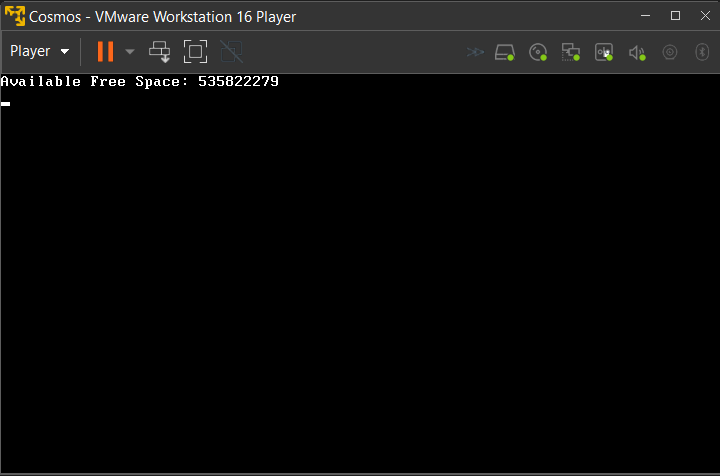
We use this function to get the size of the available free space in our file system, in bytes.
|
|
|
|
```C#
|
|
long available_space = fs.GetAvailableFreeSpace("0:/");
|
|
Console.WriteLine("Available Free Space: " + available_space);
|
|
```
|
|
|
|
|
|
|
|
You have probably noticed the "0:/" argument passed to this function, this is the id of the drive that we want to get available free space of.
|
|
Cosmos using DOS drive naming system and this is why we use "0".
|
|
|
|
## Get file system type
|
|
|
|
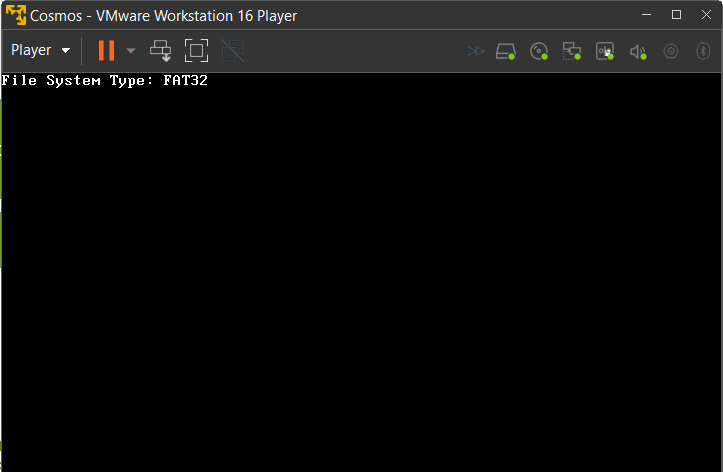
This will let us know what is the file system type that we are using.
|
|
|
|
|
|
|
|
```C#
|
|
string fs_type = fs.GetFileSystemType("0:/");
|
|
Console.WriteLine("File System Type: " + fs_type);
|
|
```
|
|
|
|
## Get files list
|
|
|
|
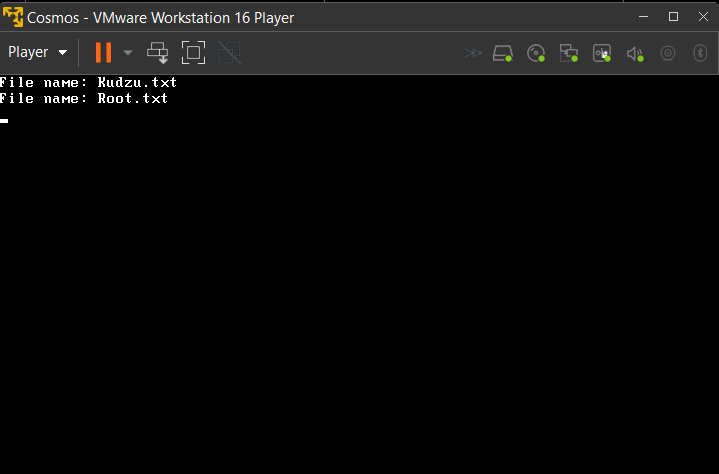
We start by getting the directory entries list, using:
|
|
|
|
```C#
|
|
var directory_list = fs.GetDirectoryListing("0:/");
|
|
```
|
|
|
|
Once we have it, we can get the names of our files:
|
|
|
|
```C#
|
|
foreach (var directoryEntry in directory_list)
|
|
{
|
|
Console.WriteLine(directoryEntry.mName);
|
|
}
|
|
```
|
|
|
|
|
|
|
|
## Read all the files in a directory
|
|
|
|
This one is more tricky,
|
|
We need to get a directoryEntryList, find files in the list and print the content to the screen.
|
|
|
|
of course, we start with geting the directory listing;
|
|
|
|
```C#
|
|
var directory_list = fs.GetDirectoryListing("0:/");
|
|
```
|
|
|
|
Now we can go through our list, and and print the txt file content.
|
|
|
|
```C#
|
|
try
|
|
{
|
|
foreach (var directoryEntry in directory_list)
|
|
{
|
|
var file_stream = directoryEntry.GetFileStream();
|
|
var entry_type = directoryEntry.mEntryType;
|
|
if(entry_type == Sys.FileSystem.Listing.DirectoryEntryTypeEnum.File)
|
|
{
|
|
byte[] content = new byte[file_stream.Length];
|
|
file_stream.Read(content, 0, (int)file_stream.Length);
|
|
Console.WriteLine("File name: " + directoryEntry.mName);
|
|
Console.WriteLine("File size: " + directoryEntry.mSize);
|
|
Console.WriteLine("Content: ");
|
|
foreach (char ch in content)
|
|
{
|
|
Console.Write(ch.ToString());
|
|
}
|
|
Console.WriteLine();
|
|
}
|
|
}
|
|
}
|
|
catch(Exception e)
|
|
{
|
|
Console.WriteLine(e.ToString());
|
|
}
|
|
```
|
|

|
|
|
|
## Read specific file
|
|
|
|
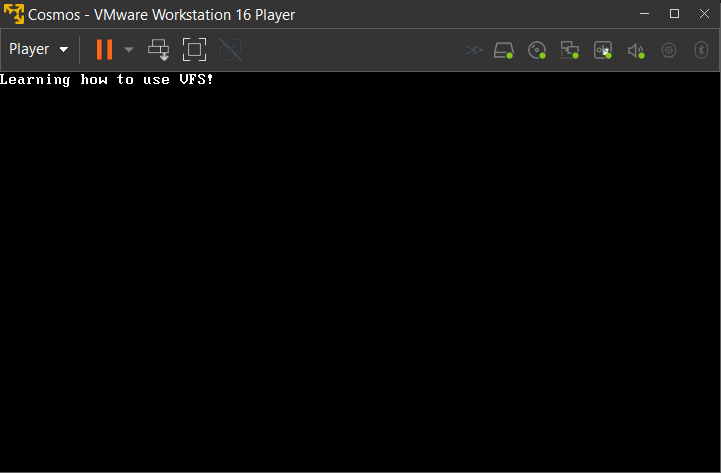
Now we will read specific file from a path.
|
|
As usual, we do it in a try catch block.
|
|
|
|
```C#
|
|
try
|
|
{
|
|
var hello_file = fs.GetFile(@"0:\hello_from_elia.txt");
|
|
var hello_file_stream = hello_file.GetFileStream();
|
|
|
|
if (hello_file_stream.CanRead)
|
|
{
|
|
byte[] text_to_read = new byte[hello_file_stream.Length];
|
|
hello_file_stream.Read(text_to_read, 0, (int)hello_file_stream.Length);
|
|
Console.WriteLine(Encoding.Default.GetString(text_to_read));
|
|
}
|
|
}
|
|
catch (Exception e)
|
|
{
|
|
Console.WriteLine(e.ToString());
|
|
}
|
|
```
|
|
|
|
We use the GetFile() method, which returns a file from a path.
|
|
Next we open a stream to the file and check if we can read it.
|
|
The last thing we do is reading from the stream, we use Read() method, which write the stream to a byte array.
|
|
|
|
|
|
|
|
Notice that there is no much difference between this and [read all the files in a directory](https://github.com/CosmosOS/Cosmos/wiki/FAT-FileSystem#read-all-the-files-in-a-directory).
|
|
Actually the difference is by using GetFile() instead of GetDirectoryListing(), as the first returns single DirectoryEntry, and the second returns DirectoryEntryList.
|
|
|
|
## Write to a file
|
|
|
|
Now we will write to an existing file.
|
|
Writing to a file is almost the same as reading from a file.
|
|
Always remember, we should use try catch block.
|
|
|
|
```C#
|
|
try
|
|
{
|
|
var hello_file = fs.GetFile(@"0:\hello_from_elia.txt");
|
|
var hello_file_stream = hello_file.GetFileStream();
|
|
|
|
if (hello_file_stream.CanWrite)
|
|
{
|
|
byte[] text_to_write = Encoding.ASCII.GetBytes("Learning how to use VFS!");
|
|
hello_file_stream.Write(text_to_write, 0, text_to_write.Length);
|
|
}
|
|
}
|
|
catch (Exception e)
|
|
{
|
|
Console.WriteLine(e.ToString());
|
|
}
|
|
```
|
|
|
|
Again we use the GetFile() method, which returns a file from a path.
|
|
Next we open a stream to the file and check if we can write to it.
|
|
The last thing we do is writing to the stream, we use Write() method, which write a byte array to the stream.
|
|
|
|
## Create new file
|
|
Reading and writing is working on existing files, but it's much more useful to write to our own files.
|
|
let's jump right into it:
|
|
|
|
```C#
|
|
try
|
|
{
|
|
fs.CreateFile(@"0:\hello_from_elia.txt");
|
|
}
|
|
catch (Exception e)
|
|
{
|
|
Console.WriteLine(e.ToString());
|
|
}
|
|
```
|
|
|
|
This would create new, empty file (its size is 0 bytes), we can write to it by using [this method](https://github.com/CosmosOS/Cosmos/wiki/FAT-FileSystem/_edit#write-to-a-file).
|
|
Now we can [check our files list](https://github.com/CosmosOS/Cosmos/wiki/FAT-FileSystem#get-files-list) and see our new file in it:
|
|
|
|

|