# Dribbblish Dynamic
A theme for [Spicetify](https://github.com/khanhas/spicetify-cli)

 ### Preview
 ## Features
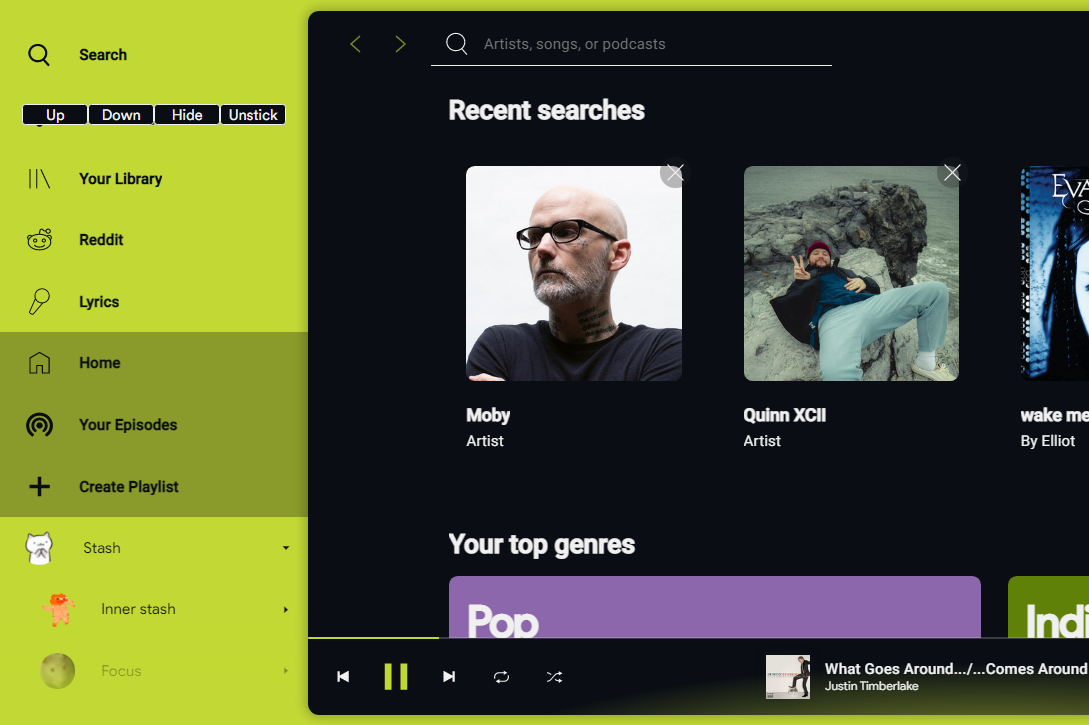
### Resizable sidebar
## Features
### Resizable sidebar
 ### Customizable sidebar
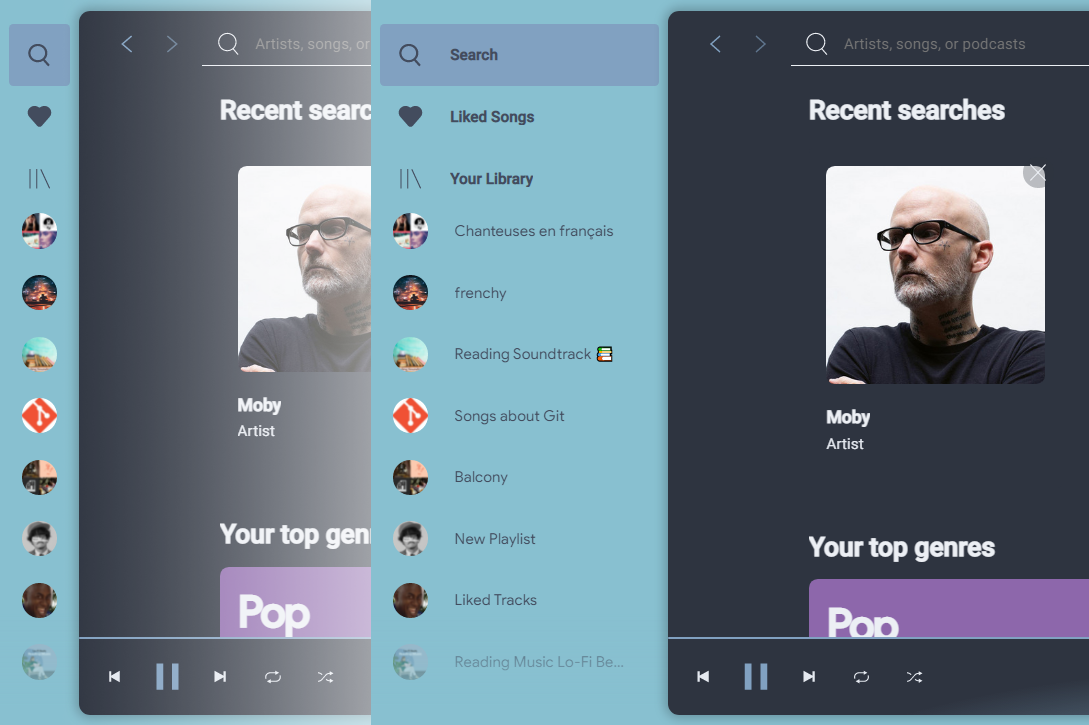
Rearrange icons positions, stick icons to header or hide unnecessary to save space.
Turn on "Sidebar config" mode in Profile menu and hover on icon to show control buttons.
After you finish customizing, turn off Config mode in Profile menu to save.
### Customizable sidebar
Rearrange icons positions, stick icons to header or hide unnecessary to save space.
Turn on "Sidebar config" mode in Profile menu and hover on icon to show control buttons.
After you finish customizing, turn off Config mode in Profile menu to save.
 ### Playlist Folder image
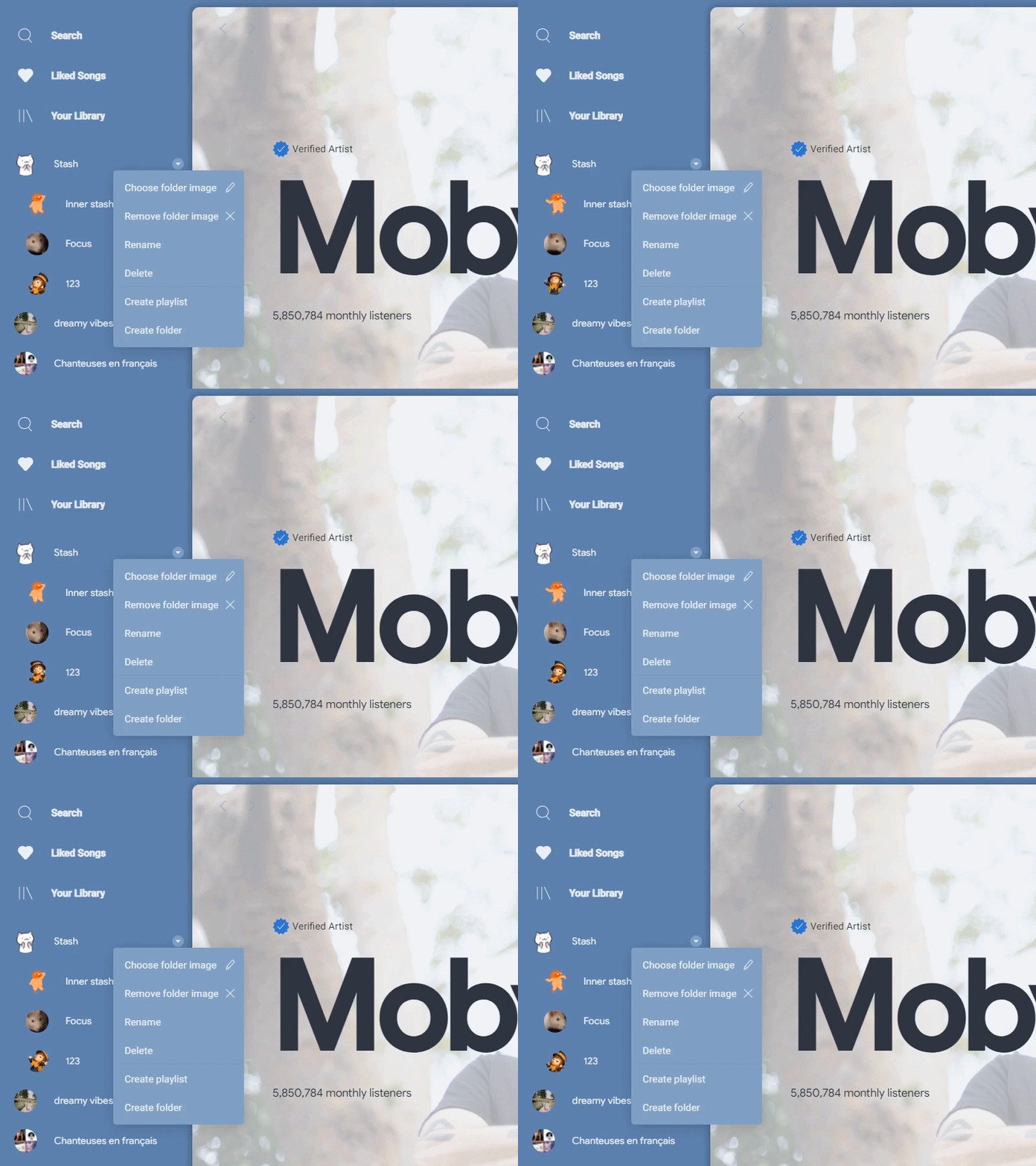
Right click at folder and choose images for your playlist folder. Every image formats supported by Chrome can be used, but do keep image size small and in compressed format.
### Playlist Folder image
Right click at folder and choose images for your playlist folder. Every image formats supported by Chrome can be used, but do keep image size small and in compressed format.
 ### Left/Right expanded cover
In profile menu, toggle option "Right expanded cover" to change expanded current track cover image to left or right side, wherever you prefer.
## Install / Update
Make sure you are using spicetify >= v2.6.0 and Spotify >= v1.1.67.
### Windows (PowerShell)
```powershell
Invoke-WebRequest -UseBasicParsing "https://raw.githubusercontent.com/JulienMaille/dribbblish-dynamic-theme/master/install.ps1" | Invoke-Expression
```
### Linux/MacOS (Bash)
```bash
curl -fsSL https://raw.githubusercontent.com/JulienMaille/dribbblish-dynamic-theme/master/install.sh | sh
```
### Manual Install
1. Download the latest [DribbblishDynamic_vX.X.X.zip](https://github.com/JulienMaille/dribbblish-dynamic-theme/releases/latest)
2. Extract the files to your [Spicetify/Themes folder](https://github.com/khanhas/spicetify-cli/wiki/Customization#themes)
3. Copy `dribbblish-dynamic.js` to your [Spicetify/Extensions folder](https://github.com/khanhas/spicetify-cli/wiki/Extensions#installing)
4. Add the 2 lines in `[Patch]` section of the config file (see details below)
5. Run:
```
spicetify config extensions dribbblish-dynamic.js
spicetify config current_theme DribbblishDynamic
spicetify config color_scheme base
spicetify config inject_css 1 replace_colors 1 overwrite_assets 1
spicetify apply
```
## IMPORTANT!
From Spotify > v1.1.62, in sidebar, they use an adaptive render mechanic to actively show and hide items on scroll. It helps reducing number of items to render, hence there is significant performance boost if you have a large playlists collection. But the drawbacks is that item height is hard-coded, it messes up user interaction when we explicitly change, in CSS, playlist item height bigger than original value. So you need to add these 2 lines in Patch section in config file:
```ini
[Patch]
xpui.js_find_8008 = ,(\w+=)32,
xpui.js_repl_8008 = ,${1}58,
```
## Hide Window Controls
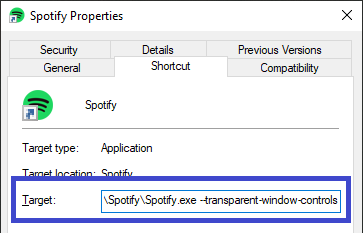
Windows user, please edit your Spotify shortcut and add flag `--transparent-window-controls` after the Spotify.exe:
To edit a taskbar shortcut, right click it, then right click Spotify in the list again.
### Left/Right expanded cover
In profile menu, toggle option "Right expanded cover" to change expanded current track cover image to left or right side, wherever you prefer.
## Install / Update
Make sure you are using spicetify >= v2.6.0 and Spotify >= v1.1.67.
### Windows (PowerShell)
```powershell
Invoke-WebRequest -UseBasicParsing "https://raw.githubusercontent.com/JulienMaille/dribbblish-dynamic-theme/master/install.ps1" | Invoke-Expression
```
### Linux/MacOS (Bash)
```bash
curl -fsSL https://raw.githubusercontent.com/JulienMaille/dribbblish-dynamic-theme/master/install.sh | sh
```
### Manual Install
1. Download the latest [DribbblishDynamic_vX.X.X.zip](https://github.com/JulienMaille/dribbblish-dynamic-theme/releases/latest)
2. Extract the files to your [Spicetify/Themes folder](https://github.com/khanhas/spicetify-cli/wiki/Customization#themes)
3. Copy `dribbblish-dynamic.js` to your [Spicetify/Extensions folder](https://github.com/khanhas/spicetify-cli/wiki/Extensions#installing)
4. Add the 2 lines in `[Patch]` section of the config file (see details below)
5. Run:
```
spicetify config extensions dribbblish-dynamic.js
spicetify config current_theme DribbblishDynamic
spicetify config color_scheme base
spicetify config inject_css 1 replace_colors 1 overwrite_assets 1
spicetify apply
```
## IMPORTANT!
From Spotify > v1.1.62, in sidebar, they use an adaptive render mechanic to actively show and hide items on scroll. It helps reducing number of items to render, hence there is significant performance boost if you have a large playlists collection. But the drawbacks is that item height is hard-coded, it messes up user interaction when we explicitly change, in CSS, playlist item height bigger than original value. So you need to add these 2 lines in Patch section in config file:
```ini
[Patch]
xpui.js_find_8008 = ,(\w+=)32,
xpui.js_repl_8008 = ,${1}58,
```
## Hide Window Controls
Windows user, please edit your Spotify shortcut and add flag `--transparent-window-controls` after the Spotify.exe:
To edit a taskbar shortcut, right click it, then right click Spotify in the list again.
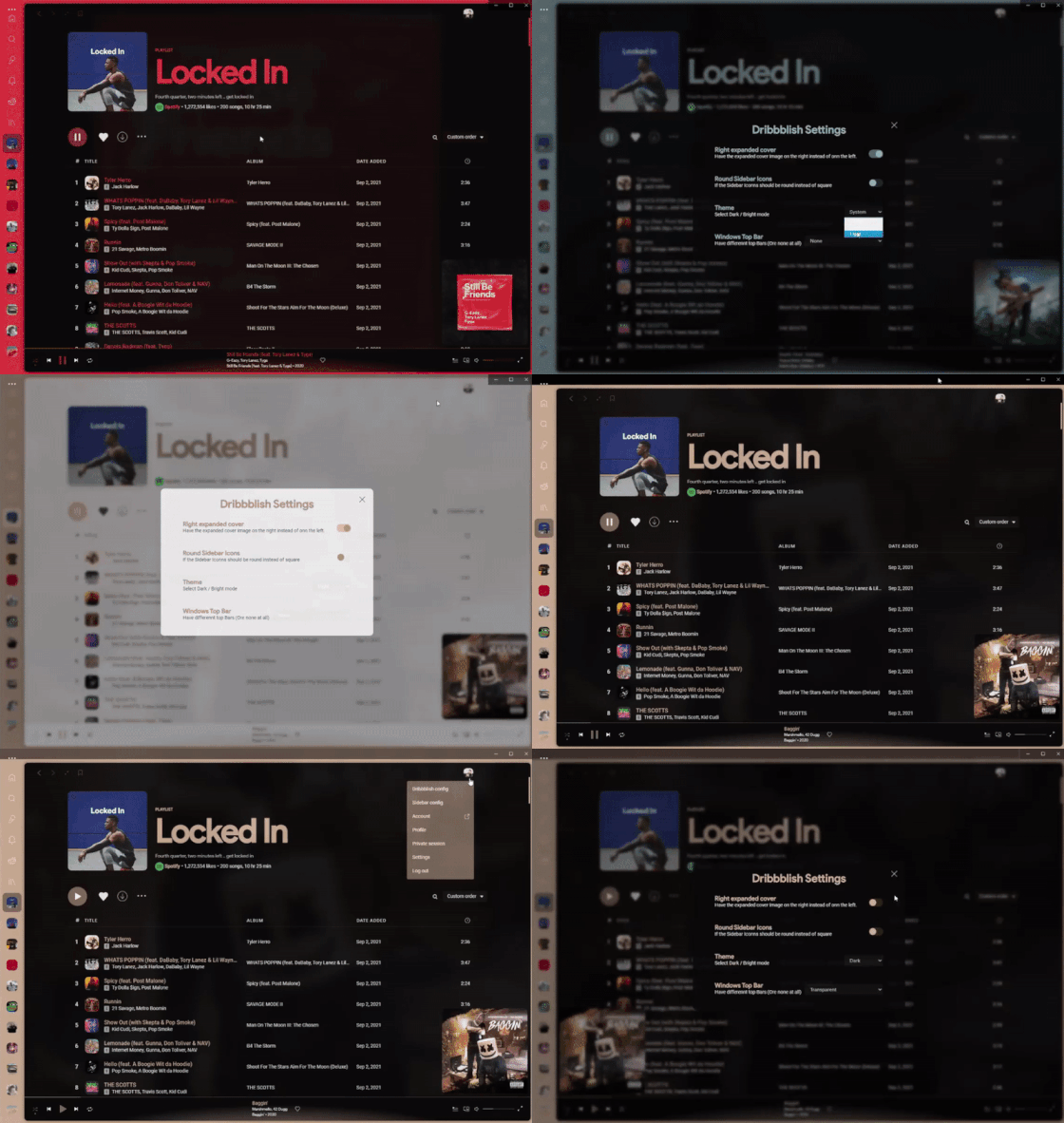
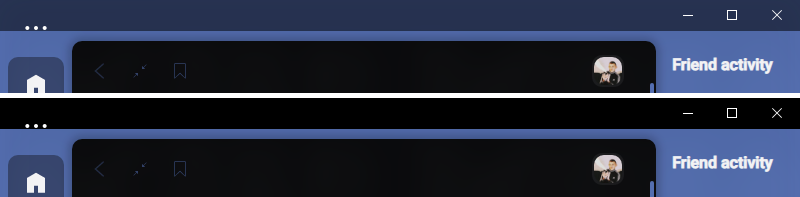
 In addition to `--transparent-window-controls` you can set `Windows Top Bars` to `Solid` or `Transparent` to look like this:
 ## Follow system dark/light theme (Powershell)
Automatic dark mode should work on MacOs and Linux out of the box.
From Spotify > v1.1.70, dark mode is forced in Windows builds. You will need to patch Spotify.exe using this script:
```powershell
Invoke-WebRequest -UseBasicParsing "https://raw.githubusercontent.com/JulienMaille/dribbblish-dynamic-theme/master/patch-dark-mode.ps1" | Invoke-Expression
```
## Uninstall
### Windows (PowerShell)
```powershell
Invoke-WebRequest -UseBasicParsing "https://raw.githubusercontent.com/JulienMaille/dribbblish-dynamic-theme/master/uninstall.ps1" | Invoke-Expression
```
### Linux/MacOS (Bash)
```bash
curl -fsSL https://raw.githubusercontent.com/JulienMaille/dribbblish-dynamic-theme/master/uninstall.sh | sh
```
### Manual Uninstall
1. Remove Patch lines you added in config file earlier.
2. Run:
```
spicetify config current_theme " " extensions dribbblish-dynamic.js-
spicetify apply
```
## Follow system dark/light theme (Powershell)
Automatic dark mode should work on MacOs and Linux out of the box.
From Spotify > v1.1.70, dark mode is forced in Windows builds. You will need to patch Spotify.exe using this script:
```powershell
Invoke-WebRequest -UseBasicParsing "https://raw.githubusercontent.com/JulienMaille/dribbblish-dynamic-theme/master/patch-dark-mode.ps1" | Invoke-Expression
```
## Uninstall
### Windows (PowerShell)
```powershell
Invoke-WebRequest -UseBasicParsing "https://raw.githubusercontent.com/JulienMaille/dribbblish-dynamic-theme/master/uninstall.ps1" | Invoke-Expression
```
### Linux/MacOS (Bash)
```bash
curl -fsSL https://raw.githubusercontent.com/JulienMaille/dribbblish-dynamic-theme/master/uninstall.sh | sh
```
### Manual Uninstall
1. Remove Patch lines you added in config file earlier.
2. Run:
```
spicetify config current_theme " " extensions dribbblish-dynamic.js-
spicetify apply
```