# Dribbblish Dynamic
### base
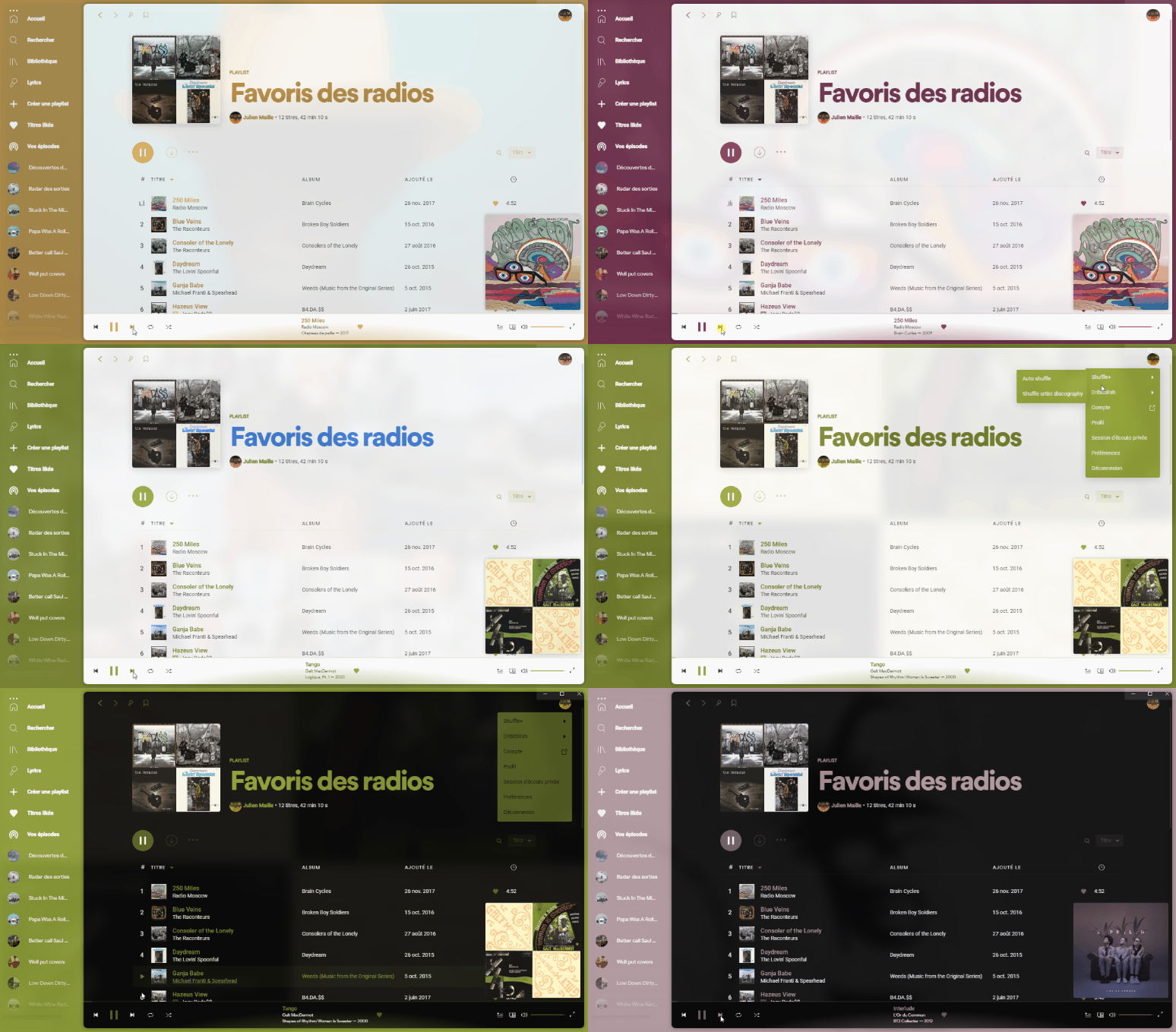
## Features
### Resizable sidebar
 ### Customizable sidebar
Rearrange icons positions, stick icons to header or hide unnecessary to save space.
Turn on Config mode in Profile menu and hover on icon to show control buttons.
After you finish customizing, turn off Config mode in Profile menu to save.
### Customizable sidebar
Rearrange icons positions, stick icons to header or hide unnecessary to save space.
Turn on Config mode in Profile menu and hover on icon to show control buttons.
After you finish customizing, turn off Config mode in Profile menu to save.
 ### Playlist Folder image
Right click at folder and choose images for your playlist folder. Every image formats supported by Chrome can be used, but do keep image size small and in compressed format.
### Playlist Folder image
Right click at folder and choose images for your playlist folder. Every image formats supported by Chrome can be used, but do keep image size small and in compressed format.
 ### Left/Right expanded cover
In profile menu, toggle option "Right expanded cover" to change expaned current track cover image to left or right side, whereever you prefer.
## Install
Make sure you are using spicetify v2 and Spotify v1.1.58 or later.
Run these commands:
### Linux and MacOS:
In **Bash**:
```bash
curl -fsSL https://raw.githubusercontent.com/JulienMaille/dribbblish-dynamic-theme/master/install.sh | sh
```
### Windows
In **Powershell**:
```powershell
Invoke-WebRequest -UseBasicParsing "https://raw.githubusercontent.com/JulienMaille/dribbblish-dynamic-theme/master/install.ps1" | Invoke-Expression
```
## Hide Window Controls
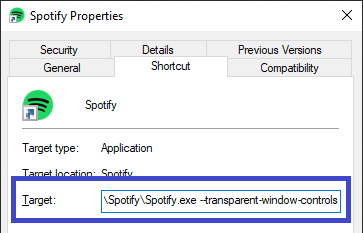
Windows user, please edit your Spotify shortcut and add flag `--transparent-window-controls` after the Spotify.exe:
Alternatively, you can use `SpotifyNoControl.exe`, included in this theme package, to completely remove all windows controls and title menu (three dot at top left corner). Title menu still can be access via Alt key. Closing, minimizing can be done via right click menu at top window region.
`SpotifyNoControl.exe` could be used as Spotify launcher, it opens Spotify and hides controls right after. You can drag and drop it to your taskbar but make sure you unpin the original Spotify icon first. Alternatively you can make a shortcut for it and add to desktop or start menu.
Moreover, by default, Spotify adjusted sidebar items and profile menu icon to stay out of Windows native controls region. If you decided to use `SpotifyNoControl.exe` from now on, please open `user.css` file and change variable `--os-windows-icon-dodge` value to 0 as instruction to snap icons back to their original position.

## Uninstall
Remove the dribbblish script with the following commands
```
spicetify config extensions dribbblish.js-
spicetify config extensions dribbblish-dynamic.js-
spicetify apply
```
### Left/Right expanded cover
In profile menu, toggle option "Right expanded cover" to change expaned current track cover image to left or right side, whereever you prefer.
## Install
Make sure you are using spicetify v2 and Spotify v1.1.58 or later.
Run these commands:
### Linux and MacOS:
In **Bash**:
```bash
curl -fsSL https://raw.githubusercontent.com/JulienMaille/dribbblish-dynamic-theme/master/install.sh | sh
```
### Windows
In **Powershell**:
```powershell
Invoke-WebRequest -UseBasicParsing "https://raw.githubusercontent.com/JulienMaille/dribbblish-dynamic-theme/master/install.ps1" | Invoke-Expression
```
## Hide Window Controls
Windows user, please edit your Spotify shortcut and add flag `--transparent-window-controls` after the Spotify.exe:

Alternatively, you can use `SpotifyNoControl.exe`, included in this theme package, to completely remove all windows controls and title menu (three dot at top left corner). Title menu still can be access via Alt key. Closing, minimizing can be done via right click menu at top window region.
`SpotifyNoControl.exe` could be used as Spotify launcher, it opens Spotify and hides controls right after. You can drag and drop it to your taskbar but make sure you unpin the original Spotify icon first. Alternatively you can make a shortcut for it and add to desktop or start menu.
Moreover, by default, Spotify adjusted sidebar items and profile menu icon to stay out of Windows native controls region. If you decided to use `SpotifyNoControl.exe` from now on, please open `user.css` file and change variable `--os-windows-icon-dodge` value to 0 as instruction to snap icons back to their original position.

## Uninstall
Remove the dribbblish script with the following commands
```
spicetify config extensions dribbblish.js-
spicetify config extensions dribbblish-dynamic.js-
spicetify apply
```