| .config | ||
| .vscode | ||
| dots-hyprland@ecaf5f90a7 | ||
| pkgs/udev-block-notify | ||
| python | ||
| screenshots | ||
| servers/eisen | ||
| .default-python-packages | ||
| .gitmodules | ||
| .oh-my-posh.nu | ||
| configuration.nix | ||
| fast-copy.sh | ||
| flake.lock | ||
| flake.nix | ||
| hardware-configuration.nix | ||
| home.nix | ||
| powersave.nix | ||
| README.md | ||
| remove-old-nix.sh | ||
| sync-nix.sh | ||
| upgrade-nix.sh | ||

Dotfiles
My dotfiles and nix setup incl. scripts for hyprland and some other goodies.
Please do edit configuration of at least hyprland and file systems - default configuration is very specific to my setup (involves monitor scaling).
Quickshell config based on (end-4's config)[https://github.com/end-4/dots-hyprland], you'll have a better time configuring them (gui settings for non-nix users).
Screenshots
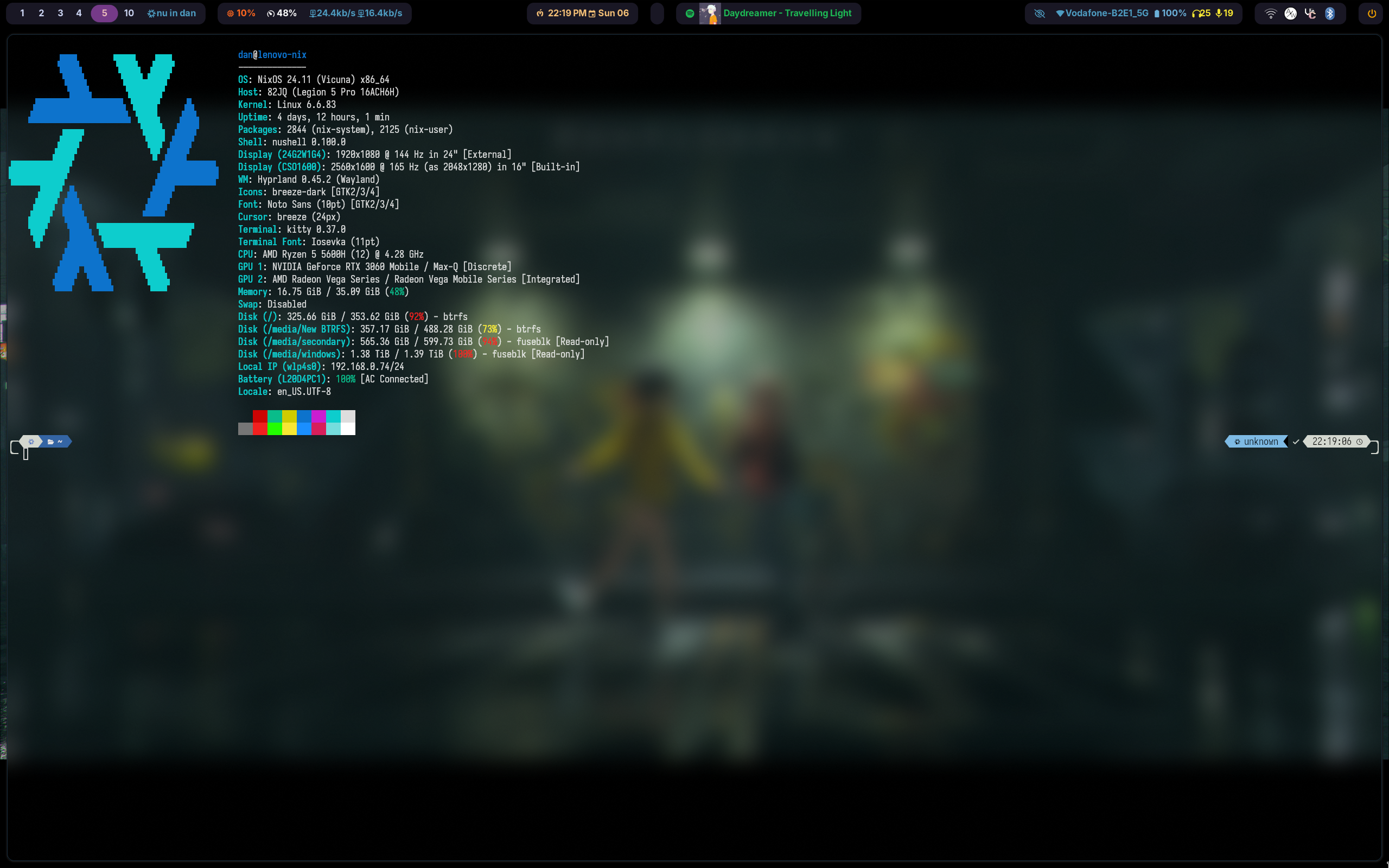
Servers
This also includes configuration for some of my (home) servers. Those are managed by colmena, but can also be instantiated locally using flakes.
Used software
I'm using NixOS. A lot of packages are missing, for the full list see home.nix.
- hyprland - wayland compositor and window manager (also adds blur and rounded corners). Really barebones, see below for shortcuts (read the config file for up to date shortcuts)
fish - shell (friendly, interactive, doesn't implement POSIX, I recommend reading it's docs first)- nushell - shell (very different)
- fastfetch - everyone needs a fetch program
- onefetch - fetch for git repos (fish is configured to show repo details when you cd into a repo)
- kitty - terminal emulator (GPU accelerated, supports ligatures, unicode, etc)
- nano - simple text editor. I recommend editing duplicating the file to root's home directory and changing the colors there, so you always see when you're sudo editing something.
- rofi - application launcher, general "chooser" (used for power menu, notification actions, etc)
- waybar - the top status bar
- hyprlock - Fancy lock screen
spicetify - custom spotify theme- VSCode - code editor. Current theme/config is not in dotfiles here, but the theme used is Atom One Dark, and the font is Fira Code.
- dolphin - file browser
- blueman - bluetooth app indicator
- swaybg - for showing wallpaper
- activity-watch and awatcher - for program usage statistics
- nm-applet - network manager app indicator
- swayidle - for automatic locking
For base setup, only hyprland, rofi, waybar and swaylock/swaylock-effects-git is required.
General notes
Setting up
Run sync-nix.sh, it will copy configurations and run nixos-rebuild.
If you don't want to build hyprland yourself and instead use cache, comment out programs.hyprland in configuration first, sync, then un-comment it and sync again.
upgrade-nix.sh updates lockfile (pacman -Syu / apt update && apt upgrade equivalent) and syncs.
fast-copy.sh just copies configuration files without touching nix / system packages and configuration.
remove-old-nix.sh removes old generations and runs nix gc to save disk space.
Lock screen
Lock screen doesn't show what you type, it just changes it's circle for each character. If you delete all the input, it will show "cleared". Escape clears input.
Click the crossed eye on the status bar (next to network connection status, on the right side) to disable automatic lock screen (for playing videos, etc, as idle detection is not perfect on hyprland). If it's purple and shows normal eye, automatic lockscreen is disabled.
Terminal
Kitty is a very basic terminal emulator, but it supports GPU acceleration, ligatures, unicode, etc.
See kitty under shortcuts for shortcuts. Note that even though it supports scrolling, it doesn't show a scrollbar.
Hyprland
Is a barebones wayland compositor and window manager. It's main features are blur and rounded corners.
By default, it can't do much, but it's very configurable. See the config file for more info.
For mouse controls, press super key and drag with left click to move the window. Use right click to resize. Super key and scroll switches desktops.
Hovered window has support, switching active window also moves the cursor.
Supports touchpad gestures (mainly swiping with 3 fingers to switch desktops).
Each monitor has it's own desktop and switches desktop independently.
Hyprland has groups - multiple programs can be grouped together and are then tabbed. The tabs are yellow as I couldn't find relevant working config :(.
super+g toggles group, super+shift+left/right switches tabs (also loops over).
Hyprland has hyprctl for viewing data about monitors and clients (windows). You can use it to find relevant IDs and classes.
Shortcuts
Set to roughly mirror KDE/Windows when possible, unless I either didn't know the shortcut or there was no such shortcut available.
Opening stuff
| Shortcut | Action |
|---|---|
| super + t | Open terminal (kitty) |
| super + r | Open application launcher (rofi) |
| super + e | Open file browser (dolphin) |
| super + p | Power menu (rofi) |
| super + b | Open browser (vivaldi) |
My current setup is set that power button turns off the computer without prompting, so maybe beware of that ;)
Windows
| Shortcut | Action |
|---|---|
| super + q | Close window |
| super + g | Toggle group |
| super + v | Toggle floating of current window |
| super + f | Toggle fullscreeen |
| super + a | Swaps workspaces between monitors |
| super + alt + arrows | Switch focus between windows (arrows indicate direction) |
| super + 1-9/0 | Switch to workspace 1-10 (workspaces are numbered from 1, 0 = workspace 10) |
| super + left/right | Move window between monitors (and their workspaces) |
| super + m | Swaps master window, i.e. the window on the left, with the current window |
Other
ctrl+alt 1/2 is passed on to OBS as a global shortcut. You may want to change this, but it can also serve as an example of a global shortcut.
Of note, obs isn't installed - nixos tries to build it manually for some reason. I use comma to one-time-install obs (, obs).