Cosmos (C# Open Source Managed Operating System) is an operating system development kit which uses Visual Studio as its development environment. Despite C# in the name any .NET based language can be used including VB.NET, Fortran, Delphi Prism, IrinPython, F# and more. Cosmos itself and the kernel routines are primarly written in C#, and thus the Cosmos name. Besides that, NOSMOS (.NET Open Source Managed Operating System) sounds stupid.
Cosmos is not an operating system in the traditional sense, but instead it is "Operating System Kit", or as I like to say "Operating System Legos". Cosmos lets you create oeprating systems just as Visual Studio and C# normally let you create applications. Most users can write and boot their own operating system in just a few minutes, all using Visual Studio. Milestone 5 includes new features such as an integrated project type in Visual Studio, and an integrated debugger. You can debug your operating system directly from Visual Studio using breakpoints.
Cosmos is available in two distributions, the developer kit (dev kit), and the user kit. The dev kit is designed for users who want to work on Cosmos itself. The user kit is designed for those who are interested in building their own operating system and doing some Cosmos work. The dev kit might be though of as the Cosmos SDK. Most users should start off with the user kit as it is not so overwhelming like the dev kit. This article focuses on the user kit.
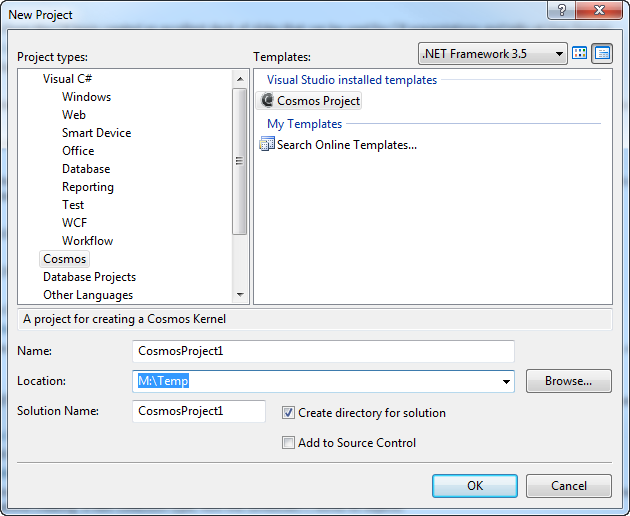
Create a new project as you would any C# project. Select Cosmos as the project type.
A starter project will be created. It looks very much like a standard C# console application.
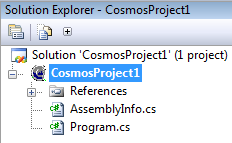
Program.cs contains the boot and execution code. Instead of seeing a Windows console window, you will see the following:
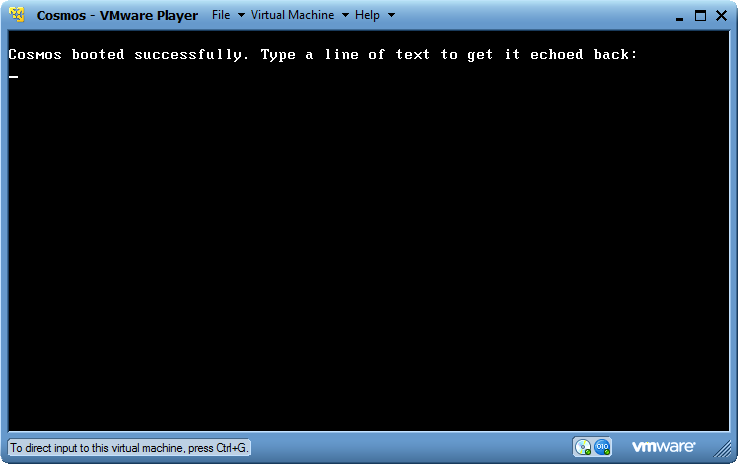
This is your operating system running in VMWare Player! Cosmos can of course also be booted in VMWare Workstation, Hyper-V, Virtual PC, or on real hardware. But by default Cosmos uses VMWare Player because it is both free, and reliable. Cosmos can even debug in Visual Studio, even when running on another machine.
Debugging is a major issue with operating system development. The Cosmos team was not content enough to simply conquer building and deployment, we want to make developing operating system as easy as developing Windows applications. Debugging a Cosmos based operating system should feel very familiar to you. Lets set a breakpoint.
----------------------
TThis is the demo, booted directly to hardware. There is no need for Windows, Linux or any other operating system to run this code. During the boot process you may notice SysLinux. SysLinux however is not a Linux distribution, but instead just a boot loader used to read files from the disk. We use SysLinux instead of Grub because it has support for PXE and other options. SysLinux is only used for initial loading of the Cosmos binaries and as soon as Cosmos is loaded SysLinux is unloaded is not used to run Cosmos code.
Ease of use, or what I like to call "Nail the basics" is a priority for us. However graphics and other things will follow in the future. Currently we are working on a wide range of file systems including FAT and ext2. We are also working on Ethernet support and can already send basic UDP packets, and are working on TCP support as well.
Debugging operating systems is typically inconvenient and hinders progress. Because of this, just as we did with making the build and boot process, we strived to make the debugging process easy. The debugger is still a work in progress, but is already quite advanced for an operating system debugger.

Adding the Cosmos.Debug namespace gives the code access to communicate directly with the debugger.

In the Guess demo I am adding a Debugger.Send, which will write a debug string to the debugger. These can be used to track code execution, but can also be used for watching variables. In this case I will use it to write out the magic number.

Notice I have also added a Debugger.Break. This will force the program to execute a breakpoint at that location.
Now let's run the Guess again. Which demo is booted is selected in Visual Studio simply by selecting it as the startup project for the solution.

This time in debugger options Source and User Only is selected. Source tells the debugger to debug C# code, rather than the lower level IL. And User Only tells the debugger not to trace into the Cosmos Kernel or the .NET libraries. This speeds up execution, but also lets me focus on tracing just the demo code.

Note that this time it did prompt us for the number yet? This is because it hit the breakpoint. Another window will appear as well, this is the Cosmos Debugger.

The message and breakpoint are displayed in the trace log, and the code is selected for the breakpoint. Breakpoints occur on the next statement after the requested break.
Now we can use the Step button (F11, just like Visual Studio) to step through the code. Each step is recorded in the trace log and previous items can be selected to walk backwards through the code. The trace log functions similarly to the call stack window in Visual Studio.

Press continue (F5) and the code will run again until a breakpoint is encountered in code, or requested from the debugger. After continue, a new button will appear to that allows a forced instant break. After continue, the code will continue and we will be prompted for the number.

We can also turn tracing on and off for specific sections of code using the Cosmos.Debug namespace.

This will cause the trace log to be populated with all statement executions between the TraceOn and TraceOff without needing to step through each statement manually.

This time Cosmos & User is selected to show more details in the trace log. Normally this option is only needed by developers working on Cosmos kernel source.
